Contents
Contents
Campus Solutions List of Values (SCC_GET_LOV)
The Campus Solutions “List of Values” (LOV) web service (SCC_GET_LOV) allows third-party systems to pull setup data out of PeopleSoft. This is useful for integrations where external applications need valid PeopleSoft codes for drop-downs (e.g. department codes, subject codes, business units).
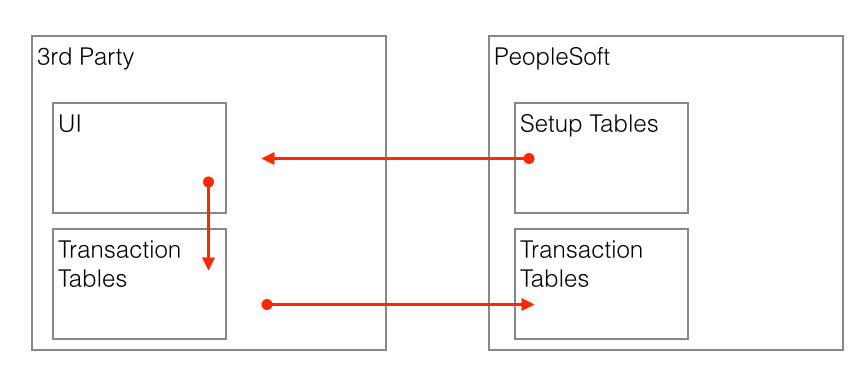
This service operation is delivered as Inactive in the latest PeopleSoft Campus Solutions releases. If you want to use this you need to activate the service operation and then configure the LOVs you want to expose via the LOV Configuration table which we will cover in a moment. The LOV service is designed to be flexible and configurable so that you can control what values are exposed to which third parties and under what contexts.
Use Case
A common scenario is an external Admissions Application that needs to present drop-downs with values that match PeopleSoft. The external application needs PeopleSoft field codes (STRM, ACAD_PROG, etc.) so that when data is pushed back into PeopleSoft, the codes are already valid.
LOV Configuration Table
To enable the LOV web service, you configure each record/field edit table at:
Set Up SACR > System Administration > Utilities > List of Values > List of Values
The configuration gives the PeopleSoft administrator control over:
- Visibility - Only fields with “Enable for Web Service” checked are available
- Exclusions - You can exclude specific values from the result set
- Override prompt tables - Use a different view than what is defined in Application Designer
- Bind values - Filters that the third party must pass or that are hard-coded
- Contexts - User-configured strings that define unique sets of values. Different third parties can get different result sets by calling with different context values
Simple Example - Institution Codes
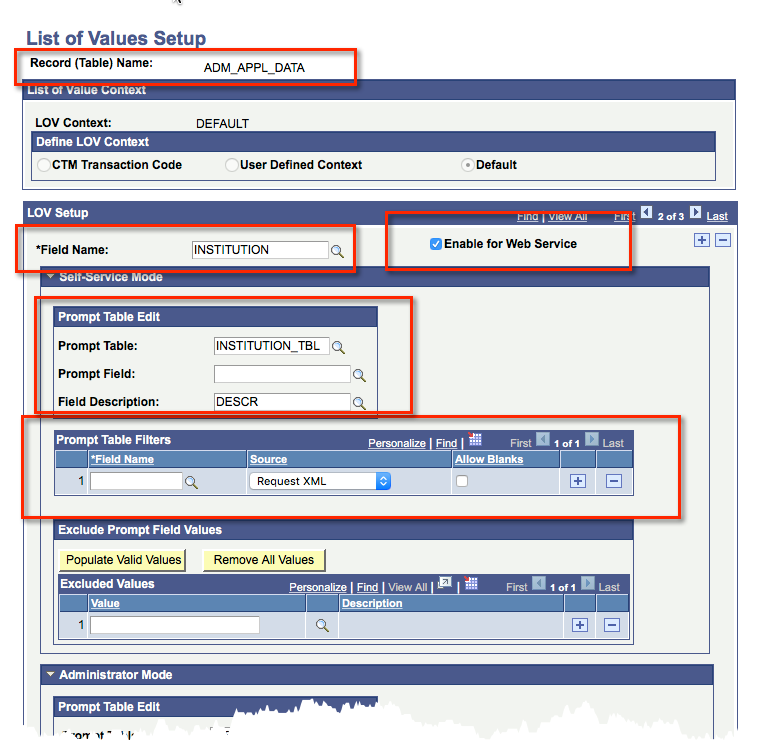
This setup says the list of INSTITUTION codes should come from INSTITUTION_TBL with the DESCR field as the return value.
HTTP request to the RESTListeningConnector:
POST http://{{ip}}:{{port}}/PSIGW/RESTListeningConnector/{{targetNode}}/SCC_GET_LOV_R.v1/get/lovs?languageCd=ENG
Content-Type: application/xml
Authorization: Basic {{basicAuthToken}}
The request XML specifies the context, record, and field:
<?xml version="1.0" encoding="UTF-8"?>
<SCC_LOV_REQ>
  <LOVS>
    <LOV name="INSTITUTION_LIST">
      <FIELDNAME>INSTITUTION</FIELDNAME>
      <RECORDNAME>ADM_APPL_DATA</RECORDNAME>
      <LOVCONTEXT>DEFAULT</LOVCONTEXT>
      <KEYS>
        <KEY>
          <FIELDNAME/>
          <FIELDVALUE/>
        </KEY>
      </KEYS>
    </LOV>
  </LOVS>
</SCC_LOV_REQ>
First let’s look at a failure message where the request is NOT valid based on the LOV configuration. In this example, the request is missing the required key value of INSTITUTION which is required based on the LOV setup. The error message indicates “Validation Failed for ADM_APPL_DATA.INSTITUTION” which is helpful for troubleshooting.
<?xml version="1.0"?>
<SCC_LOV_RESP xmlns="http://xmlns.oracle.com/Enterprise/Tools/services">
  <IS_FAULT>Y</IS_FAULT>
  <SCC_FAULT_RESP>
    <detail>
      <MSGS>
        <MSG>
          <ID>14098-443</ID>
          <DESCR>Invalid request parameters.</DESCR>
          <MESSAGE_SEVERITY>E</MESSAGE_SEVERITY>
          <PROPS />
        </MSG>
        <MSG>
          <ID>14098-157</ID>
          <DESCR>Validation Failed for ADM_APPL_DATA.INSTITUTION</DESCR>
          <MESSAGE_SEVERITY>E</MESSAGE_SEVERITY>
          <PROPS />
        </MSG>
      </MSGS>
    </detail>
  </SCC_FAULT_RESP>
</SCC_LOV_RESP>
The response returns CODE and DESC pairs for each valid value. Notice how the <LOV name="INSTITUTION_LIST"> in the response matches the name attribute in the request which is helpful for identifying result sets when you combine multiple LOV requests into one call (which is supported and we will cover in a moment).
<?xml version="1.0"?>
<SCC_LOV_RESP xmlns="http://xmlns.oracle.com/Enterprise/Tools/services">
  <LOVS>
    <LOV name="INSTITUTION_LIST">
      <VALUES>
        <VALUE>
          <CODE>GLAKE</CODE>
          <DESC>Great Lakes University</DESC>
        </VALUE>
        <VALUE>
          <CODE>PSAUS</CODE>
          <DESC>PeopleSoft Australia Uni</DESC>
        </VALUE>
        <VALUE>
          <CODE>PSCCS</CODE>
          <DESC>PS Community College System</DESC>
        </VALUE>
        <VALUE>
          <CODE>PSESP</CODE>
          <DESC>PeopleSoft University Spain</DESC>
        </VALUE>
        <VALUE>
          <CODE>PSFRA</CODE>
          <DESC>French University</DESC>
        </VALUE>
        <VALUE>
          <CODE>PSGBR</CODE>
          <DESC>PeopleSoft University UK</DESC>
        </VALUE>
        <VALUE>
          <CODE>PSLAD</CODE>
          <DESC>Peoplesoft University LAD</DESC>
        </VALUE>
        <VALUE>
          <CODE>PSNLD</CODE>
          <DESC>PeopleSoft University -  NLD</DESC>
        </VALUE>
        <VALUE>
          <CODE>PSNZL</CODE>
          <DESC>Silver Fern University</DESC>
        </VALUE>
        <VALUE>
          <CODE>PSSTA</CODE>
          <DESC>PeopleSoft State University</DESC>
        </VALUE>
        <VALUE>
          <CODE>PSUCE</CODE>
          <DESC>PSU Community Education</DESC>
        </VALUE>
        <VALUE>
          <CODE>PSUNV</CODE>
          <DESC>PeopleSoft University</DESC>
        </VALUE>
      </VALUES>
    </LOV>
  </LOVS>
</SCC_LOV_RESP>
CODE and DESC. You cannot add additional fields. This is geared toward pulling drop-down values, not complex data.Example with Filter and Exclusion
For fields that require parent keys (like ACAD_CAREER which needs INSTITUTION), configure “Prompt Table Filters” on the LOV setup:
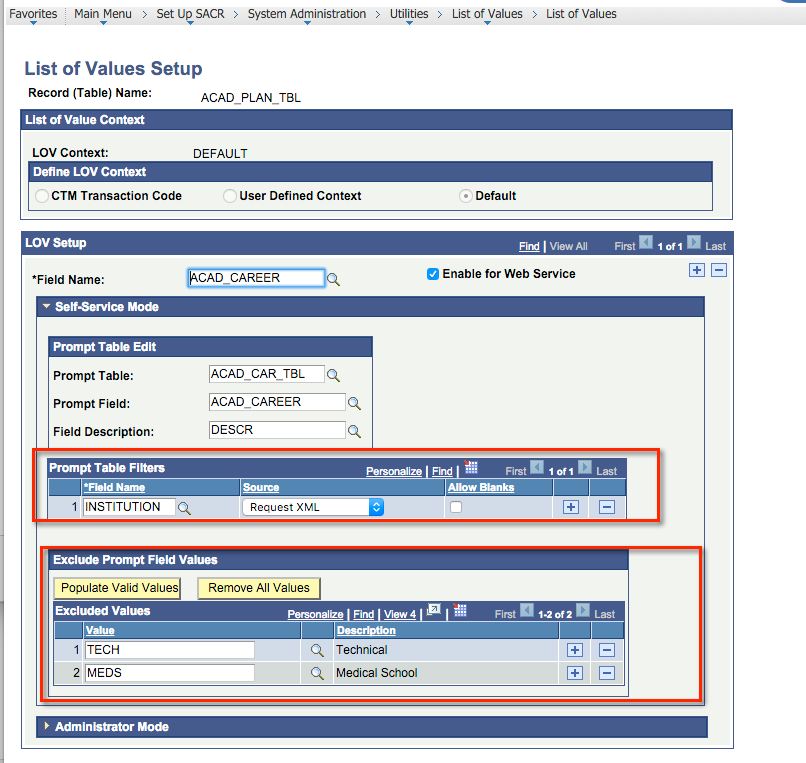
The request XML includes key/value pairs:
<?xml version="1.0" encoding="UTF-8"?>
<SCC_LOV_REQ>
  <LOVS>
    <LOV name="CAREER_LIST">
      <FIELDNAME>ACAD_CAREER</FIELDNAME>
      <RECORDNAME>ACAD_PLAN_TBL</RECORDNAME>
      <LOVCONTEXT>DEFAULT</LOVCONTEXT>
      <KEYS>
        <KEY>
          <FIELDNAME>INSTITUTION</FIELDNAME>
          <FIELDVALUE>PSUNV</FIELDVALUE>
        </KEY>
      </KEYS>
    </LOV>
  </LOVS>
</SCC_LOV_REQ>
<?xml version="1.0"?>
<SCC_LOV_RESP xmlns="http://xmlns.oracle.com/Enterprise/Tools/services">
  <LOVS>
    <LOV name="CAREER_LIST">
      <VALUES>
        <VALUE>
          <CODE>CNED</CODE>
          <DESC>Continuing Education</DESC>
        </VALUE>
        <VALUE>
          <CODE>GRAD</CODE>
          <DESC>Graduate</DESC>
        </VALUE>
        <VALUE>
          <CODE>LAW</CODE>
          <DESC>Law</DESC>
        </VALUE>
        <VALUE>
          <CODE>MEDS</CODE>
          <DESC>Medical School</DESC>
        </VALUE>
        <VALUE>
          <CODE>TECH</CODE>
          <DESC>Technical</DESC>
        </VALUE>
        <VALUE>
          <CODE>UENG</CODE>
          <DESC>Undergraduate Engineering</DESC>
        </VALUE>
        <VALUE>
          <CODE>UGRD</CODE>
          <DESC>Undergraduate</DESC>
        </VALUE>
      </VALUES>
    </LOV>
  </LOVS>
</SCC_LOV_RESP>
You can also configure value exclusions in the LOV setup (e.g. exclude TECH, MEDS careers).
Combining LOV Calls
The SCC_GET_LOV service is designed to handle multiple LOV requests in a single HTTP call. Nest multiple LOV elements inside the LOVS parent node:
<?xml version="1.0" encoding="UTF-8"?>
<SCC_LOV_REQ>
  <LOVS>
    <LOV name="INSTITUTION_LIST">
      <FIELDNAME>INSTITUTION</FIELDNAME>
      <RECORDNAME>ADM_APPL_DATA</RECORDNAME>
      <LOVCONTEXT>DEFAULT</LOVCONTEXT>
      <KEYS>
        <KEY>
          <FIELDNAME />
          <FIELDVALUE />
        </KEY>
      </KEYS>
    </LOV>
    <LOV name="CAREER_LIST">
      <FIELDNAME>ACAD_CAREER</FIELDNAME>
      <RECORDNAME>ACAD_PLAN_TBL</RECORDNAME>
      <LOVCONTEXT>DEFAULT</LOVCONTEXT>
      <KEYS>
        <KEY>
          <FIELDNAME>INSTITUTION</FIELDNAME>
          <FIELDVALUE>PSUNV</FIELDVALUE>
        </KEY>
      </KEYS>
    </LOV>
  </LOVS>
</SCC_LOV_REQ>
The response contains both result sets with the name attribute echoed back for identification.
<?xml version="1.0"?>
<SCC_LOV_RESP xmlns="http://xmlns.oracle.com/Enterprise/Tools/services">
  <LOVS>
    <LOV name="INSTITUTION_LIST">
      <VALUES>
        <VALUE>
          <CODE>GLAKE</CODE>
          <DESC>Great Lakes University</DESC>
        </VALUE>
        <VALUE>
          <CODE>PSAUS</CODE>
          <DESC>PeopleSoft Australia Uni</DESC>
        </VALUE>
        <VALUE>
          <CODE>PSCCS</CODE>
          <DESC>PS Community College System</DESC>
        </VALUE>
        <VALUE>
          <CODE>PSESP</CODE>
          <DESC>PeopleSoft University Spain</DESC>
        </VALUE>
        <VALUE>
          <CODE>PSFRA</CODE>
          <DESC>French University</DESC>
        </VALUE>
        <VALUE>
          <CODE>PSGBR</CODE>
          <DESC>PeopleSoft University UK</DESC>
        </VALUE>
        <VALUE>
          <CODE>PSLAD</CODE>
          <DESC>Peoplesoft University LAD</DESC>
        </VALUE>
        <VALUE>
          <CODE>PSNLD</CODE>
          <DESC>PeopleSoft University -  NLD</DESC>
        </VALUE>
        <VALUE>
          <CODE>PSNZL</CODE>
          <DESC>Silver Fern University</DESC>
        </VALUE>
        <VALUE>
          <CODE>PSSTA</CODE>
          <DESC>PeopleSoft State University</DESC>
        </VALUE>
        <VALUE>
          <CODE>PSUCE</CODE>
          <DESC>PSU Community Education</DESC>
        </VALUE>
        <VALUE>
          <CODE>PSUNV</CODE>
          <DESC>PeopleSoft University</DESC>
        </VALUE>
      </VALUES>
    </LOV>
    <LOV name="CAREER_LIST">
      <VALUES>
        <VALUE>
          <CODE>CNED</CODE>
          <DESC>Continuing Education</DESC>
        </VALUE>
        <VALUE>
          <CODE>GRAD</CODE>
          <DESC>Graduate</DESC>
        </VALUE>
        <VALUE>
          <CODE>LAW</CODE>
          <DESC>Law</DESC>
        </VALUE>
        <VALUE>
          <CODE>MEDS</CODE>
          <DESC>Medical School</DESC>
        </VALUE>
        <VALUE>
          <CODE>TECH</CODE>
          <DESC>Technical</DESC>
        </VALUE>
        <VALUE>
          <CODE>UENG</CODE>
          <DESC>Undergraduate Engineering</DESC>
        </VALUE>
        <VALUE>
          <CODE>UGRD</CODE>
          <DESC>Undergraduate</DESC>
        </VALUE>
      </VALUES>
    </LOV>
  </LOVS>
</SCC_LOV_RESP>
name attribute on each LOV element when combining calls so you can identify which result set is which in the response.psLens Operations & Intelligence
Look up any record, field, page, or component, audit security, and monitor Integration Broker across every database — in seconds.
- 30+ object types browsable
- 16 real-time alert types
- Read-only by design
- No App Designer or SQL required
psLens Operations & Intelligence
A web console built for the PeopleSoft community — operational monitoring, security auditing, and metadata browsing in one tool.
- Sub-second object search
- Catch stuck IB messages before users do
- Audit service permissions from one screen
- Works in any browser
psLens Operations & Intelligence
On-demand security and operational reports for your PeopleSoft environment — no client install required.
- 14 on-demand reports
- Markdown export for AI/LLM workflows
- No shared tenancy
- Built on 25+ years of PeopleSoft expertise
psLens Operations & Intelligence
Research any PeopleSoft object and monitor system health from a single browser tab — no App Designer, no SQL.
- 30+ PeopleSoft object types browsable
- Real-time alerts before users report problems
- Read-only and secure
- Private alpha — early access now
Chris Malek
Chris Malek is a PeopleTools® Technical Consultant with over two decades of experience. He is available for consulting engagements.
Work with ChrisSubscribe to Updates
PeopleSoft Simple Web Services
SWS turns SQL into production REST APIs — ready for AI, modern apps, and partner integrations. One install, unlimited potential.
- Configuration-driven, no coding required
- JSON, XML, and CSV output
- Works across all PeopleSoft pillars
- Built on 25+ years of PeopleSoft expertise
PeopleSoft Simple Web Services
A powerful PeopleSoft bolt-on that makes REST web services easy. You bring the SQL, SWS handles the rest.
- Go from idea to production in minutes
- Zero code migrations after install
- JSON, XML, and CSV output supported
- No PeopleCode or Integration Broker expertise required
PeopleSoft Simple Web Services
Traditional PeopleSoft web services cost $3,600–$13,000 each to develop. SWS deploys production REST APIs in under 5 minutes through configuration alone.
- No PeopleCode or Integration Broker expertise required
- Works across Campus Solutions, HCM, and Financials
- Built-in pagination, caching, and nested data structures
- Trusted by institutions across higher education and government
PeopleSoft Simple Web Services
Turn PeopleSoft data into clean REST APIs for AI integrations, modern applications, and vendor data feeds. Configuration-driven — no PeopleCode required.
- Deploy production APIs in under 5 minutes
- AI and LLM ready (RAG, chatbots, intelligent search)
- JSON, XML, and CSV output
- Zero modifications to delivered PeopleSoft objects